
SoMerch Integration for monday.com
The SoMerch integration for monday.com turns board and workflow data into controlled merchandise fulfilment actions. Teams can connect a SoMerch account, select an existing order, choose products, quantities and sizes, map recipient information, create a shipment, and use shipment-status events in later monday.com workflow steps. It is designed for HR, People Ops, Office, Workplace and Operations teams that already coordinate employee or company merchandise in monday.com and want fulfilment to stay connected to that process.
The short answer
The SoMerch integration for monday.com connects merchandise fulfilment to the workflows your team already uses in monday.com.
It supports two core directions:
-
monday.com → SoMerch: use a monday.com workflow to create a shipment under an existing SoMerch order. The user selects the order, selects products from that order, sets quantities and sizes or variants where applicable, maps recipient information, and creates the shipment.
-
SoMerch → monday.com: use a shipment-status trigger to continue a monday.com workflow when a shipment changes status in SoMerch.
A common setup looks like this:
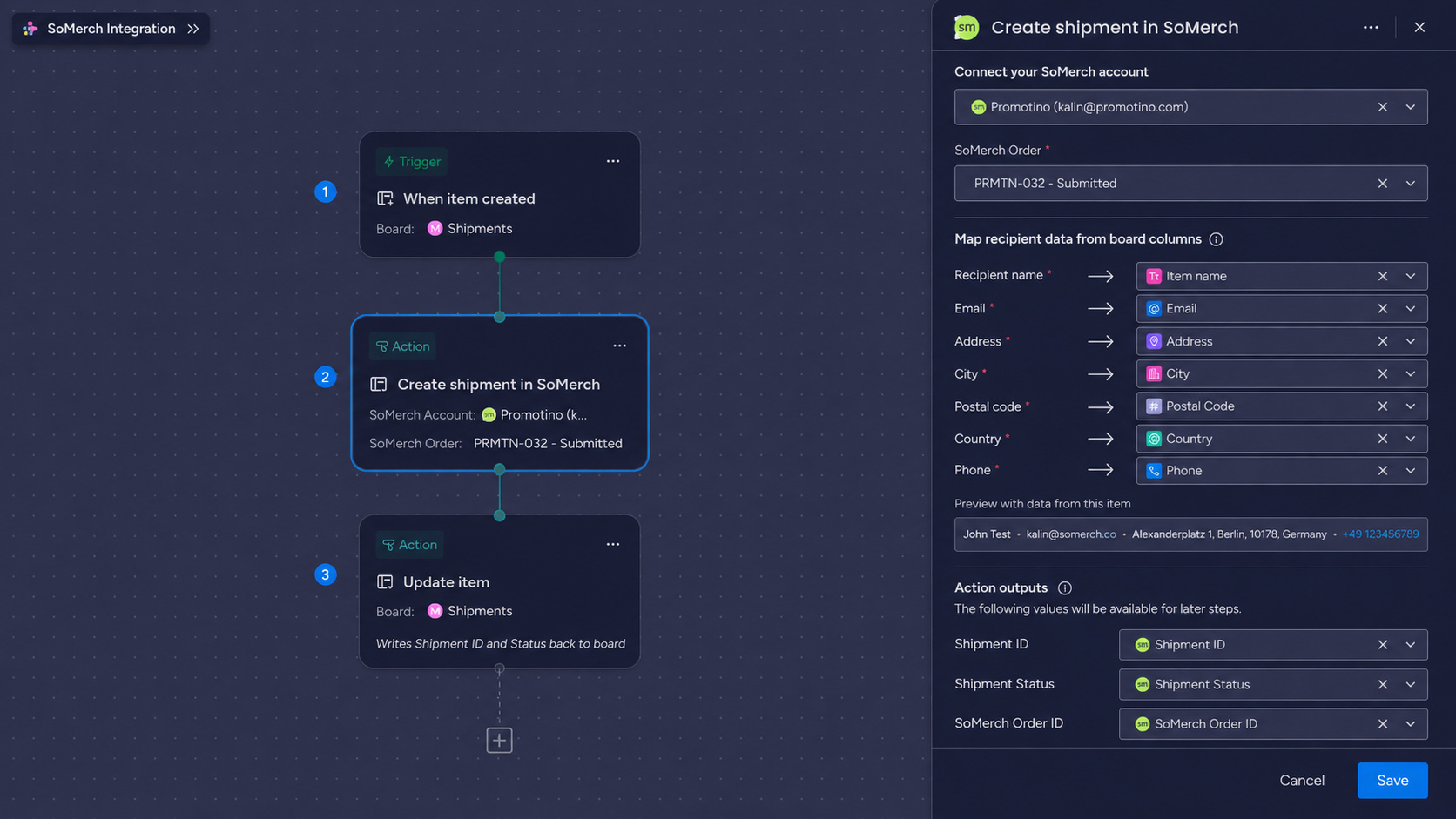
When item created → Create shipment in SoMerch → Update item
The reverse flow can look like:
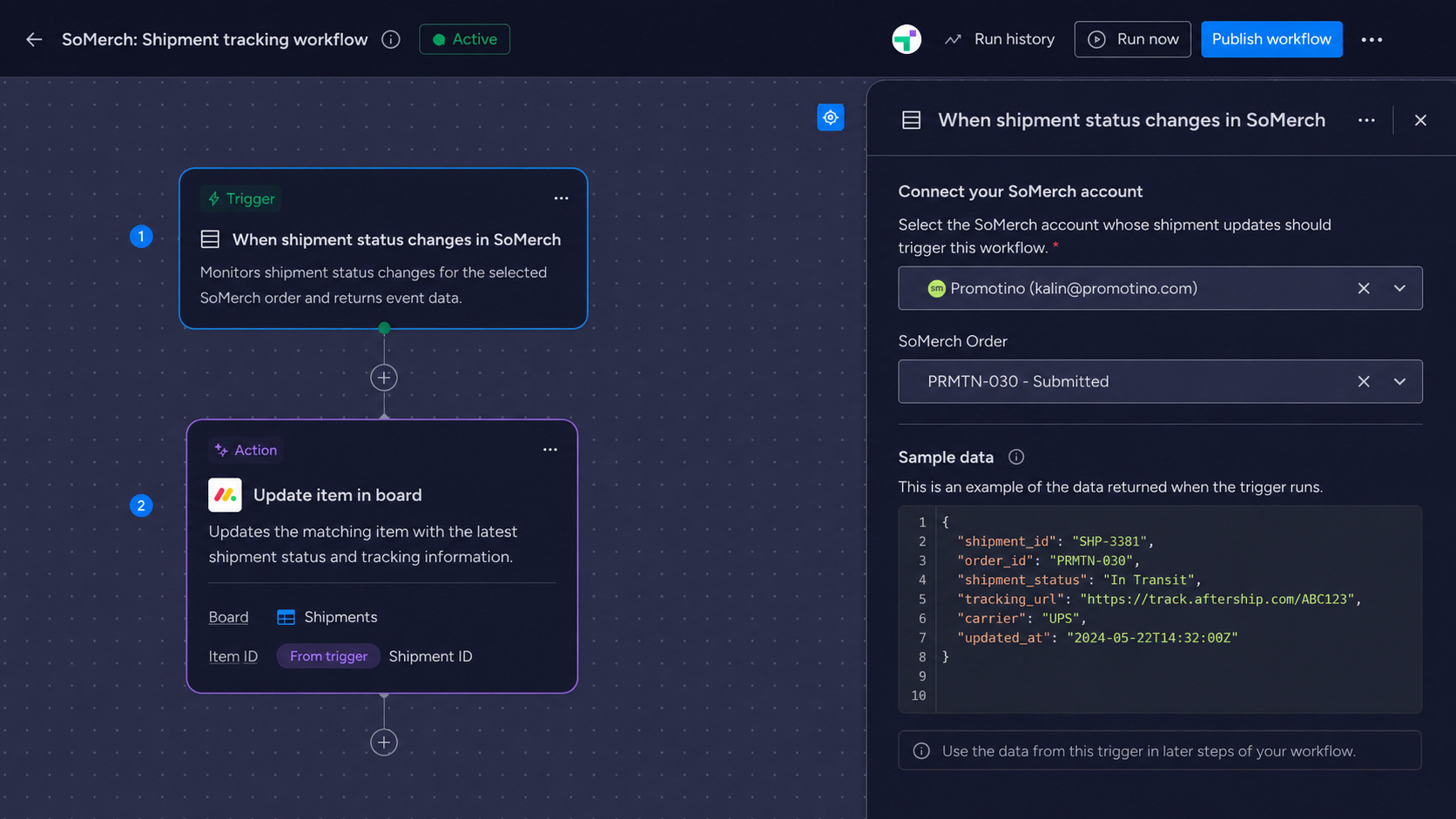
When shipment status changes in SoMerch → Update item
The integration does not create a new commercial merchandise order from scratch. Shipment creation operates on an existing eligible SoMerch order. Product availability, sizes, quantities and shipment validation remain controlled by SoMerch.
The integration is useful when monday.com is already the place where HR, People Ops, Workplace, Office or Operations teams coordinate onboarding, employee gifting, events, anniversaries, office programs or other recipient-based processes.
Media: Place the 30-60 second integration walkthrough video here.
Before you start
You need a few things before building the first workflow.
| Requirement | What you need |
|---|---|
| SoMerch account | An active SoMerch account with access to the organization that owns the relevant merchandise order |
| Existing SoMerch order | A confirmed or otherwise eligible order that can be used for shipment creation |
| Products in the order | Products and variants that are available for fulfilment under that order |
| monday.com access | A monday.com account with the permissions required by your organization to install apps, create workflows, access the selected board and publish the workflow |
| Recipient data | The board or workflow must provide the recipient fields required for the shipment |
| Test item | For first-time setup, use a test item and a non-critical shipment before enabling the workflow for a live process |
If you cannot install the app, configure a workflow or publish it, your monday.com account may not have the required permissions. Contact your monday.com administrator.
For the Create shipment in SoMerch action, the simplest board setup contains:
| monday.com column | Recommended type | Example |
|---|---|---|
| Item name | Item name | John Test |
| [email protected] | ||
| Address | Text | Alexanderplatz 1 |
| City | Text | Berlin |
| Postal Code | Text | 10178 |
| Country | Text | DE |
| Phone | Phone or Text | +49 123 456789 |
| SoMerch Shipment ID | Text | Filled after the workflow runs |
| Shipment Status | Status or Text | Filled after the workflow runs |
The exact board structure can be different. The important point is that the workflow can supply the values required by the SoMerch action.
For predictable country handling, use an unambiguous country value. ISO two-letter country codes such as DE, FR or NL are a practical choice when your internal board structure allows them.
Install and connect SoMerch
1. Install the SoMerch app
Install SoMerch from the monday.com Marketplace using the normal app installation flow.
After installation, open the Workflow Center in monday.com. SoMerch is a workflow-focused integration, so the main setup happens in the Workflow Builder rather than in a separate SoMerch board view.
2. Create or open a workflow
Create a new workflow or edit an existing workflow.
For shipment creation, start with the monday.com trigger that matches your process. For example:
When item created
You can use another trigger if it supplies the data needed by the SoMerch action.
Add an action and search for SoMerch.
Choose:
Create shipment in SoMerch
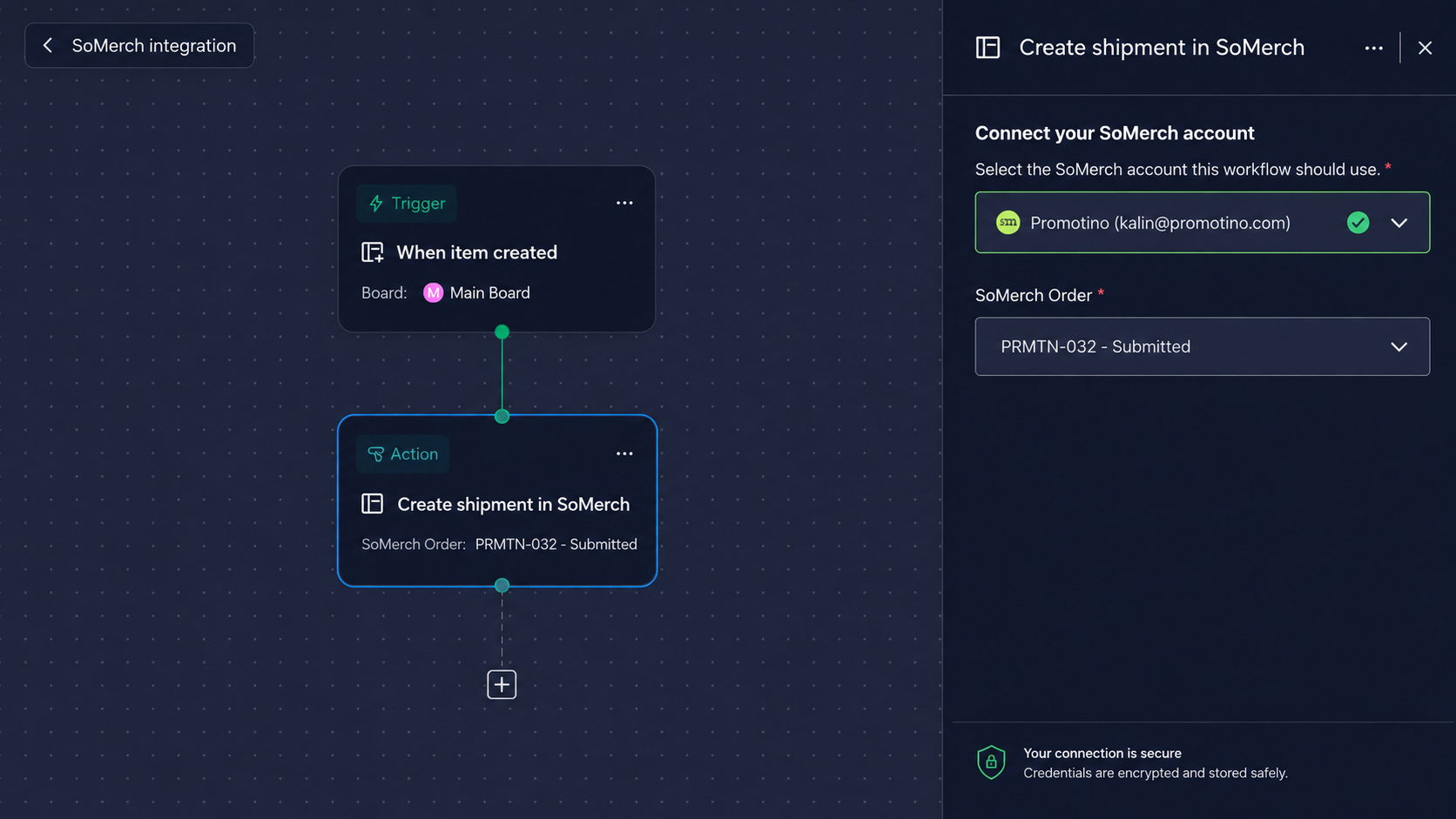
3. Connect your SoMerch account
In the SoMerch action, select:
Choose SoMerch account
monday.com opens the SoMerch authorization flow. Sign in to SoMerch if required and authorize the connection.
After authorization, the connected SoMerch account becomes available in the workflow.
SoMerch uses OAuth-based authorization for this connection. You do not need to paste your SoMerch password, access token, API key or other authentication secret into a normal monday.com workflow field.
If the account connection expires, is revoked or is no longer authorized, reconnect the SoMerch account before running the workflow again.
Create a shipment from monday.com
The Create shipment in SoMerch action is designed to prevent users from manually copying internal order or product IDs.
The configuration follows the actual SoMerch fulfilment structure:
SoMerch account → SoMerch Order → Products → Shipment Items → Recipient data
Step 1: Select the SoMerch order
Open SoMerch Order.
The selector loads orders available to the connected SoMerch organization. Choose the order that will supply the merchandise for this workflow.
If the order does not appear, check:
-
that the correct SoMerch account is connected;
-
that the order belongs to that organization;
-
that the order is in a state that can be used by the integration; and
-
that your SoMerch user is authorized to access it.
You do not need to create an Order ID column on the monday.com board just to use this selector.
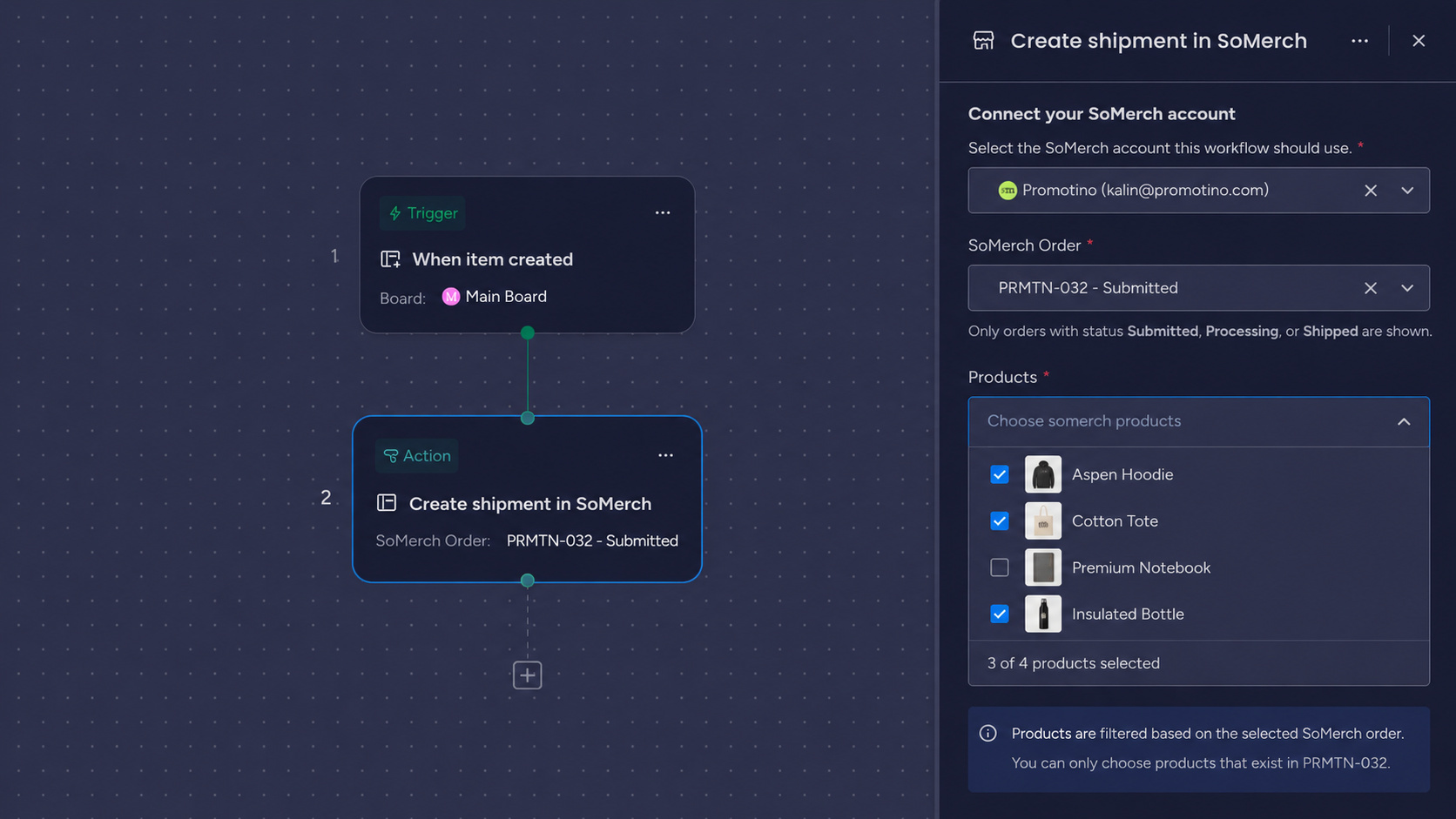
Step 2: Select the products
Open Products.
This field depends on the selected SoMerch order. It loads only the products that belong to that order and are available to the integration.
Select the products that should be included in the recipient’s shipment.
Where the action supports multiple products, you can include more than one eligible order item in the same shipment.
Step 3: Set shipment quantities and sizes
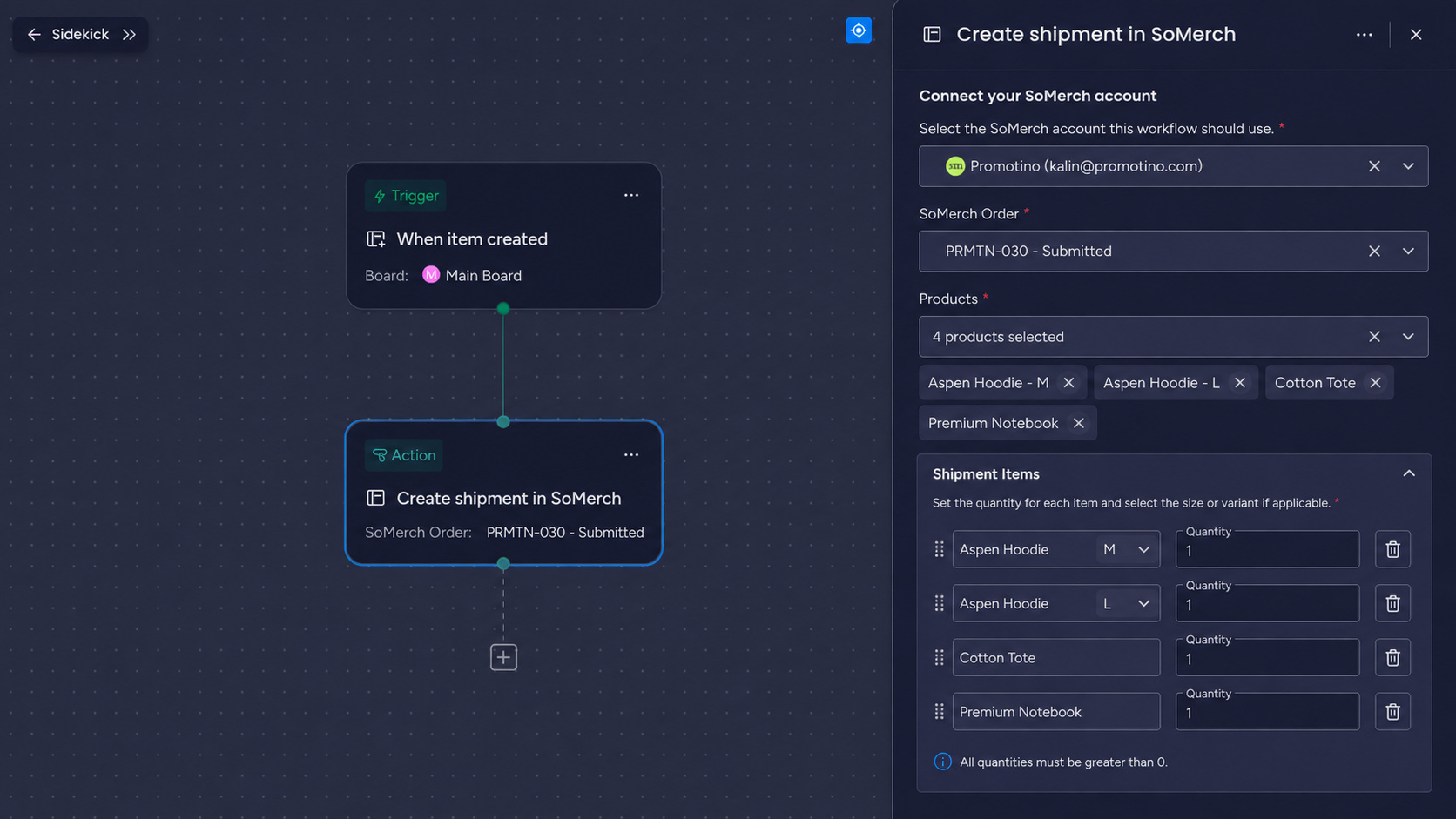
After products are selected, configure Shipment Items.
The field is generated dynamically from the selected order and products.
For a product without sizes, the workflow may show a quantity field such as:
Cotton Tote - Quantity
For apparel or another product with size or variant choices, it shows the applicable size or variant fields available for that selected order item.
Example:
-
Aspen Hoodie - S
-
Aspen Hoodie - M
-
Aspen Hoodie - L
-
Aspen Hoodie - XL
Enter the quantity that should be included for the relevant size or variant.
This matters because a shipment is not complete with only an order and product selection. SoMerch must know the actual quantity and, where applicable, which size or variant should be shipped.
SoMerch validates shipment contents before creation. A workflow may fail if, for example:
-
a selected product is not part of the order;
-
a requested size or variant is not valid;
-
the requested quantity is not valid;
-
the quantity exceeds what can be fulfilled;
-
the order is not available to the connected organization; or
-
required shipment information is missing.
Step 4: Map recipient information
Map the recipient fields from the monday.com trigger or board into the SoMerch action.
Typical mappings are:
| SoMerch action field | Example monday.com source |
|---|---|
| Recipient name | Item name |
| Address | Address |
| City | City |
| Postal code | Postal Code |
| Country | Country |
| Phone | Phone |
Only map information that is necessary for the shipment and that your organization is authorized to provide to SoMerch.
Review the mapping carefully before publishing the workflow. A wrong source column can create a real fulfilment record with incorrect recipient information.
Step 5: Use the shipment outputs
A successful Create shipment in SoMerch action returns workflow outputs that can be used by later monday.com blocks.
The current shipment action provides:
| Output | Purpose |
|---|---|
| Shipment ID | The created SoMerch shipment identifier |
| Shipment Status | The shipment status returned after creation |
| SoMerch Order ID | The SoMerch order associated with the shipment |
A practical workflow is:
When item created → Create shipment in SoMerch → Update item
In the final Update item block, map:
-
Shipment ID→ your SoMerch Shipment ID column -
Shipment Status→ your Shipment Status column
This keeps the operational result visible on the same monday.com item that initiated the shipment.
Step 6: Test before publishing
Use a controlled test item before relying on the workflow for real recipients.
Check:
-
the correct SoMerch account is connected;
-
the correct order is selected;
-
the correct products are selected;
-
quantities and sizes are correct;
-
recipient fields map to the intended monday.com columns;
-
the workflow run succeeds;
-
exactly one shipment is created in SoMerch; and
-
the Shipment ID and Shipment Status are written back correctly if you configured those outputs.
Use Run history in monday.com to inspect workflow executions and failures.
Once the test is correct, publish or activate the workflow according to your monday.com process.
What happens when the shipment action runs
When monday.com executes Create shipment in SoMerch, SoMerch validates the request against the connected organization and selected order before creating the shipment.
The integration checks the operational data needed for fulfilment, including the order, selected order products, available sizes or variants, requested quantities and recipient details.
SoMerch also uses workflow execution identifiers to protect shipment creation against duplicate execution. If monday.com retries the same execution because of a timeout or temporary error, the integration is designed to return the existing result rather than create a second shipment for the same execution.
This duplicate-protection mechanism does not replace normal workflow review. Users should still check Run history and the SoMerch order if a workflow behaves unexpectedly.
Keep shipment status in sync
SoMerch also provides a reverse-direction trigger:
When shipment status changes in SoMerch
This allows a shipment event in SoMerch to start or continue a monday.com workflow.
Step 1: Create a status workflow
Create a new workflow and choose the SoMerch trigger:
When shipment status changes in SoMerch
Connect the SoMerch account if it is not already available.
Step 2: Choose an optional order filter
The trigger can be configured with a SoMerch Order filter.
If an order is selected, the trigger is limited to matching shipment-status events for that order.
If the field is left empty and the workflow configuration allows it, the trigger can be used for shipment events across the connected SoMerch account.
Use an order filter when you want a workflow to remain scoped to one onboarding campaign, event, office program or other specific order.
Step 3: Add the next monday.com action
The status trigger provides outputs that later workflow blocks can use.
Current trigger outputs include:
| Output | Purpose |
|---|---|
| Shipment ID | Identifies the SoMerch shipment |
| SoMerch Order ID | Identifies the associated order |
| Shipment Status | The new SoMerch shipment status |
| Tracking URL | Tracking information when available |
You can use these outputs in a monday.com action such as creating an item, updating an item, changing a status or another workflow step available in your account.
A simple test flow is:
When shipment status changes in SoMerch → Create item
A production flow may instead use the Shipment ID to identify the relevant operational record and update your existing tracking process.
Step 4: Publish the workflow
The shipment-status trigger becomes active when the workflow is published or activated.
SoMerch stores the limited subscription information needed to send matching shipment events to the monday.com webhook supplied for that workflow.
When the workflow is deactivated or removed, the corresponding subscription is designed to be removed so that future SoMerch shipment events no longer trigger that workflow.
Common workflow patterns
Employee onboarding
A People Ops team keeps new hires in a monday.com board.
A new employee item triggers:
When item created → Create shipment in SoMerch → Update item
The workflow maps the employee’s delivery information, selects the agreed onboarding order and products, creates the shipment, and writes the SoMerch Shipment ID and initial status back to the employee item.
Employee gifting and milestones
A workflow can start from an internal milestone process, select the relevant existing SoMerch order, and create a shipment for the recipient.
Keep different programs in separate orders or clearly controlled workflows when the merchandise, audience or budget is different.
Event or campaign fulfilment
An Operations or Marketing team can use monday.com to coordinate recipients or event participants while SoMerch remains the fulfilment system.
The workflow uses the selected event order and its available products rather than asking users to manually copy product identifiers.
Shipment follow-up
Use:
When shipment status changes in SoMerch
to continue a monday.com workflow when the fulfilment status changes.
This separates the two responsibilities cleanly:
-
monday.com coordinates the team process;
-
SoMerch remains the operational source for merchandise orders and shipments.
Data, permissions and security
Data sent from monday.com to SoMerch
The integration processes only the information required for the configured workflow.
Depending on the workflow, this may include:
-
recipient name;
-
email;
-
delivery address;
-
city;
-
postal code;
-
country;
-
telephone number;
-
selected SoMerch order;
-
selected order products;
-
quantities;
-
sizes or variants;
-
workflow execution identifiers;
-
webhook or subscription identifiers; and
-
other monday.com values that the user explicitly maps to a SoMerch field.
The integration is not designed to copy the complete contents of your monday.com boards into SoMerch.
Data returned from SoMerch to monday.com
Depending on the workflow, SoMerch may return:
-
available orders;
-
available products from the selected order;
-
available shipment quantity/size fields;
-
Shipment ID;
-
SoMerch Order ID;
-
Shipment Status;
-
Tracking URL when available;
-
validation or error information required to explain a failed workflow action.
Authentication
The SoMerch account connection uses OAuth-based authorization.
Do not enter the following into normal workflow fields or support requests:
-
passwords;
-
access tokens;
-
refresh tokens;
-
API keys;
-
authentication codes;
-
signing secrets.
If the connection stops working, reconnect the SoMerch account through the integration rather than sending credentials to another person.
monday.com permissions
SoMerch requests only the monday.com permissions configured for the app and needed to support its workflow integration.
Your organization controls who can install apps, access boards, build workflows and publish workflows through its monday.com account configuration.
A user who does not have the required monday.com permissions may be able to see information without being able to configure or activate the integration. Contact your monday.com administrator if a required action is unavailable.
Recipient data
Delivery information may concern employees, customers or other recipients.
Your organization is responsible for ensuring that it is authorized to provide that information to SoMerch for fulfilment.
Map only the fields needed for the requested shipment.
For full information about data handling, retention, integrations and deletion requests, see the SoMerch Privacy Policy.
When reporting a technical issue, include:
-
approximate date and time;
-
workflow name;
-
the SoMerch feature used;
-
monday.com Run history error text where available;
-
SoMerch order reference;
-
Shipment ID if one was created; and
-
a description of the expected and actual result.
Do not send passwords, authentication codes, access tokens, refresh tokens, signing secrets, API keys or complete payment-card details.
Disconnecting or uninstalling SoMerch
You can stop using the integration by:
-
deactivating or deleting individual workflows;
-
disconnecting the SoMerch account connection where the control is available; or
-
uninstalling the SoMerch app from monday.com according to your account permissions.
Deactivating a shipment-status workflow removes the active workflow subscription so that matching future shipment events no longer trigger that workflow.
Disconnecting or uninstalling the integration does not automatically reverse a shipment that has already been created in SoMerch.
It also does not automatically cancel an existing merchandise order, commercial agreement, production job, shipment or delivery.
Integration data and operational records are handled according to the SoMerch Privacy Policy. monday-derived integration data and metadata that are no longer required and do not have another lawful retention basis are handled under the integration deletion rules described there.
Support
For help with the SoMerch integration for monday.com, contact:
SoMerch Support
Useful links:
The help page should remain focused on the integration when displayed inside monday.com. In the embedded version, do not display the standard website navigation or unrelated promotional links.