
SoMerch Integration for Canva
The SoMerch integration for Canva connects merchandise selection, artwork preparation and production in one workflow. Users can connect their SoMerch organization, choose a merch product and color, add the product image directly to a Canva design, place a logo or other artwork on it, configure quantity and production details, review the request, and send the finished Canva artwork to SoMerch. The goal is simple: move from a blank Canva page to a real merchandise production request without exporting files, copying product links or rebuilding the request elsewhere.
The short answer
The SoMerch integration for Canva lets you turn a merch idea into a production request without leaving the Canva workflow.
The basic process is:
Choose product -> Choose color -> Add product to design -> Place logo -> Set quantity and production details -> Review -> Send to SoMerch
The product image becomes part of the Canva design, so you can work visually with the actual merch item instead of designing against an empty page or a generic mockup.
A typical use case is simple:
-
Open SoMerch inside Canva.
-
Choose a T-shirt, hoodie, bottle, bag or another available merch product.
-
Select the product color.
-
Add that product image to the Canva page.
-
Upload or select your logo in Canva and position it on the product.
-
Set the required quantity and other request details.
-
Review the design.
-
Send the Canva artwork to SoMerch.
The final Canva page is exported as a PNG and attached to the SoMerch request as the artwork and placement reference.
This means a marketing, brand, HR or workplace team can go from "put this logo on this product" to a real production request in a few minutes.
Video walkthrough
Before you start
You need a few things before using the integration.
| Requirement | What you need |
|---|---|
| Canva account | Access to the Canva Design Editor and permission to use apps in your Canva environment |
| SoMerch account | An active SoMerch account with access to the organization you want to use |
| Merch product | A product available through the SoMerch catalog shown in the Canva app |
| Logo or artwork | A logo, text, graphic or other design element you want to place on the product |
| Production details | A rough quantity and, where relevant, a preferred needed-by date or production note |
| Test design | For first-time use, start with a simple one-page Canva design before sending a live request |
The integration is designed around one Canva page per production request. The final page should clearly show the selected product and the artwork placement you want SoMerch to review.
Connect SoMerch in Canva
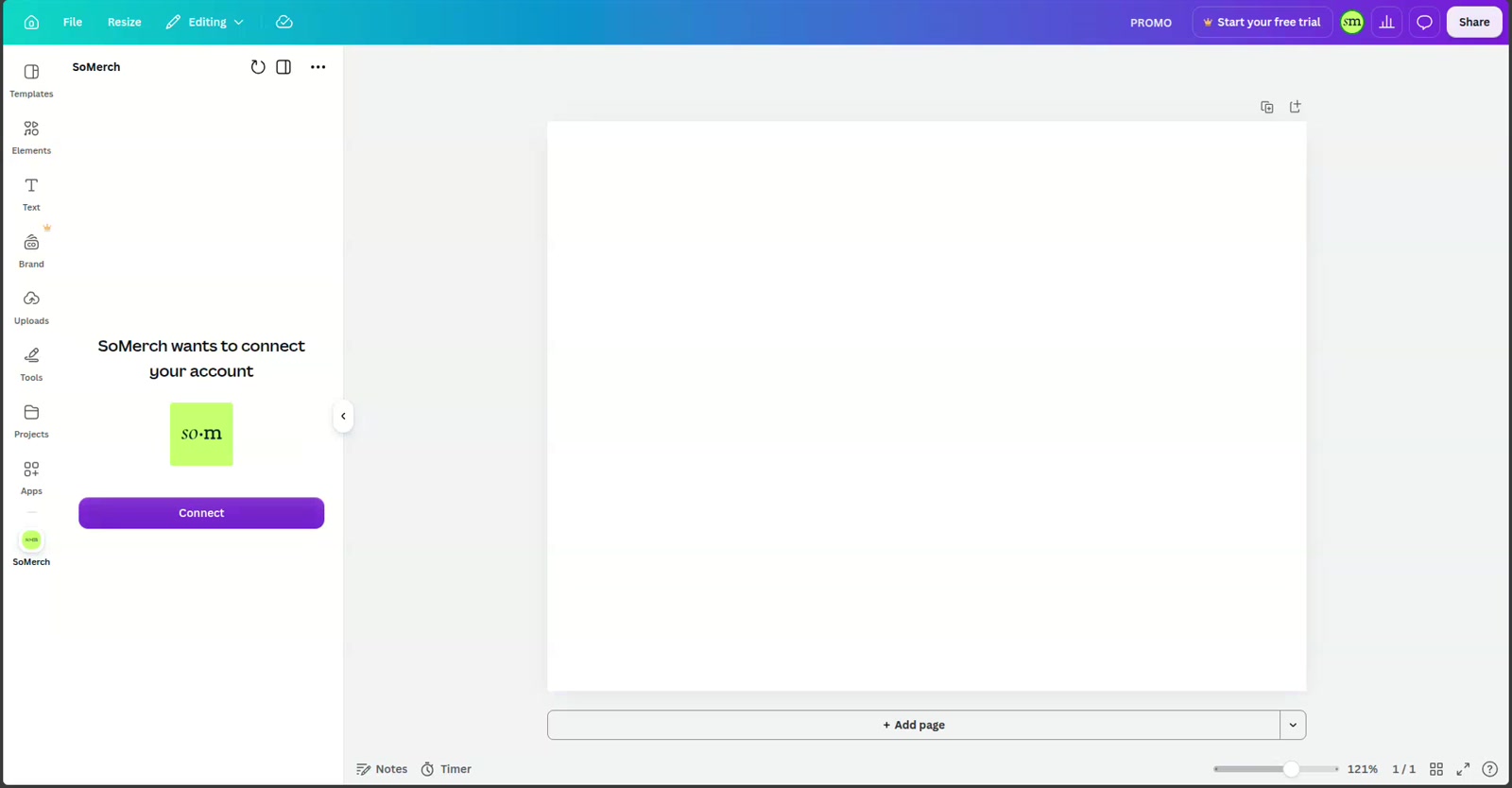
1. Open SoMerch from Canva Apps
Open a Canva design and select SoMerch from the Apps area.
If the account is not connected yet, the SoMerch panel shows the connection screen.
Click:
Connect
Canva opens the SoMerch authorization flow.
2. Authorize the SoMerch account
Sign in to SoMerch if required and authorize the Canva connection.
After authorization, the app loads the catalog available to the connected SoMerch organization.
The connection uses OAuth authorization. You do not need to copy an API key, access token or password into Canva.
If you later need to change organizations or disconnect the current account, use the organization menu in the SoMerch header and choose Log out.
Choose a merch product and color
Once connected, the first step is choosing the actual merchandise item you want to design.
The catalog appears directly inside the Canva side panel, with product images, names, starting prices and minimum order quantities where available.
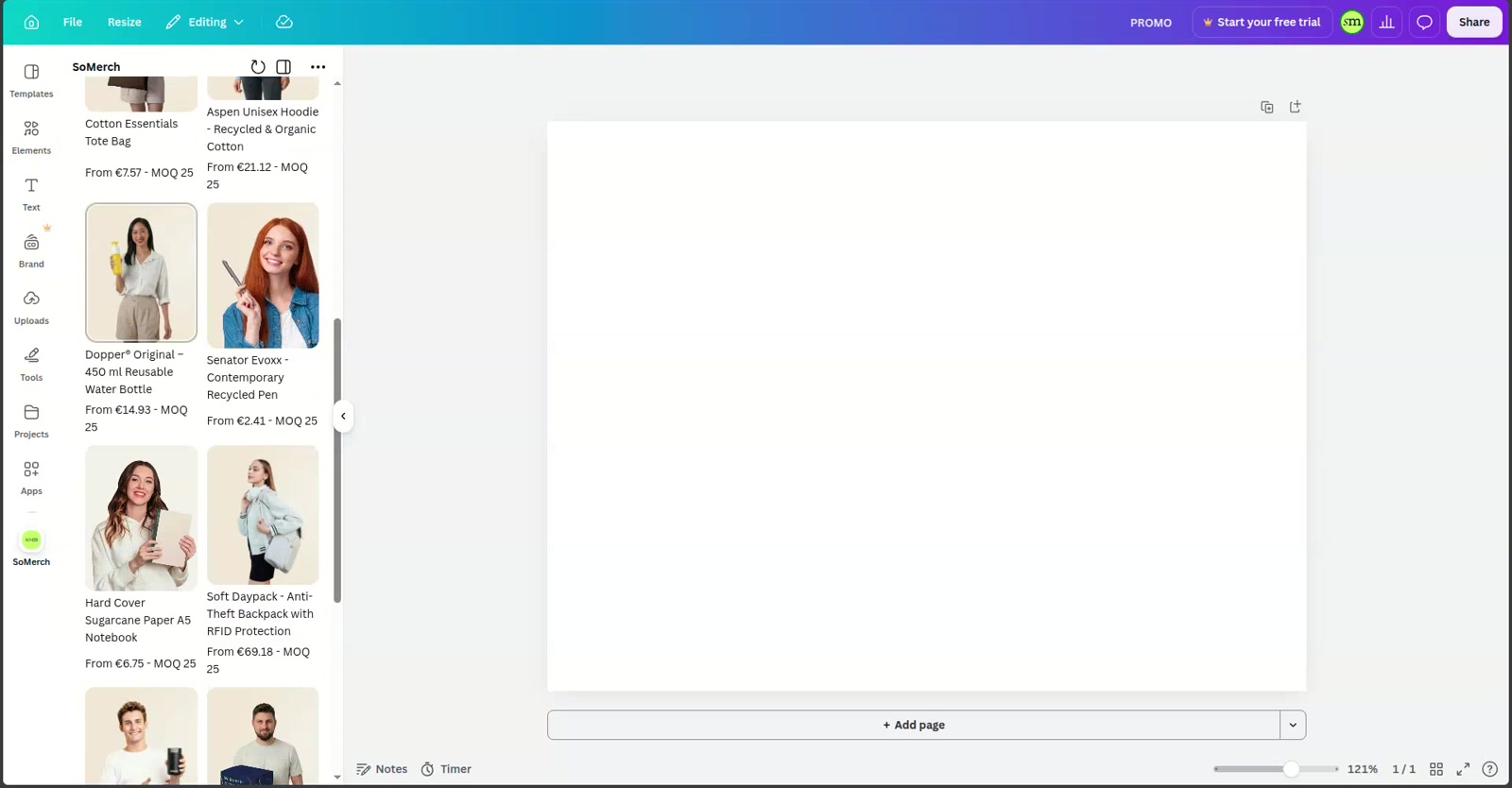
You can browse the available items and open the product that fits the project.
This is useful because the design starts from a real product rather than a generic rectangle or a manually downloaded mockup.
Review product details
The product details step shows the selected item together with the information needed to make a practical decision, including:
-
product image;
-
SKU;
-
starting price;
-
minimum order quantity;
-
production lead time;
-
description;
-
available colors; and
-
a link to view the product on SoMerch.
Choose the color you want to use for the design.
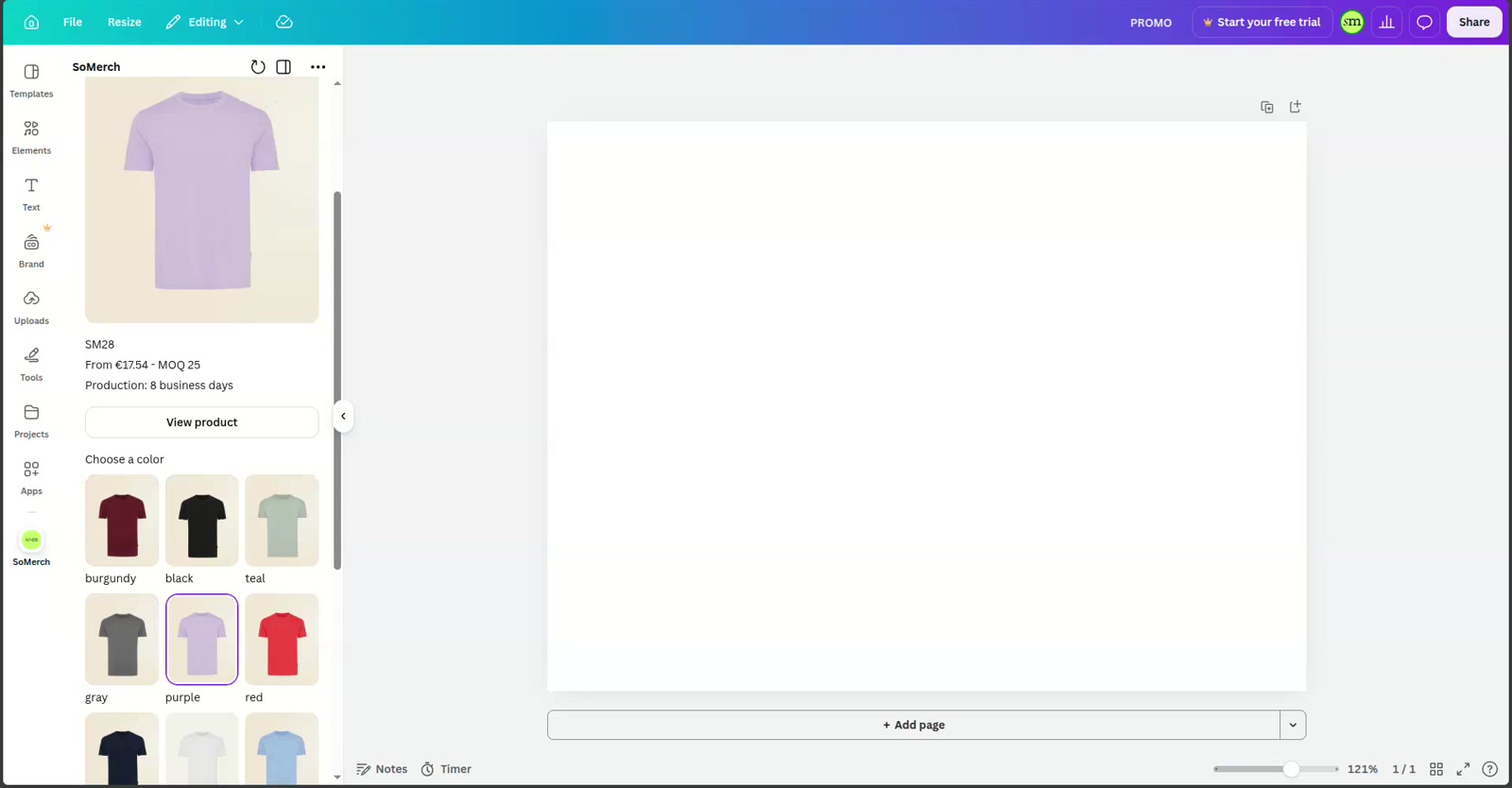
The selected color is important because the image added to the Canva design matches that product choice.
If you switch to another color later, add the new selected product image to the design again so that the Canva page represents the version you actually want to request.
Add the product to your Canva design
After selecting the product and color, click:
Add product to design
SoMerch prepares a Canva-compatible product image and Canva adds it to the current design as an editable image element.
Depending on image preparation and network speed, this can take a few seconds. The integration shows a loading state while the image is being prepared and added.
Once complete, the product image is on the Canva page and can be moved, resized or repositioned like other Canva content.
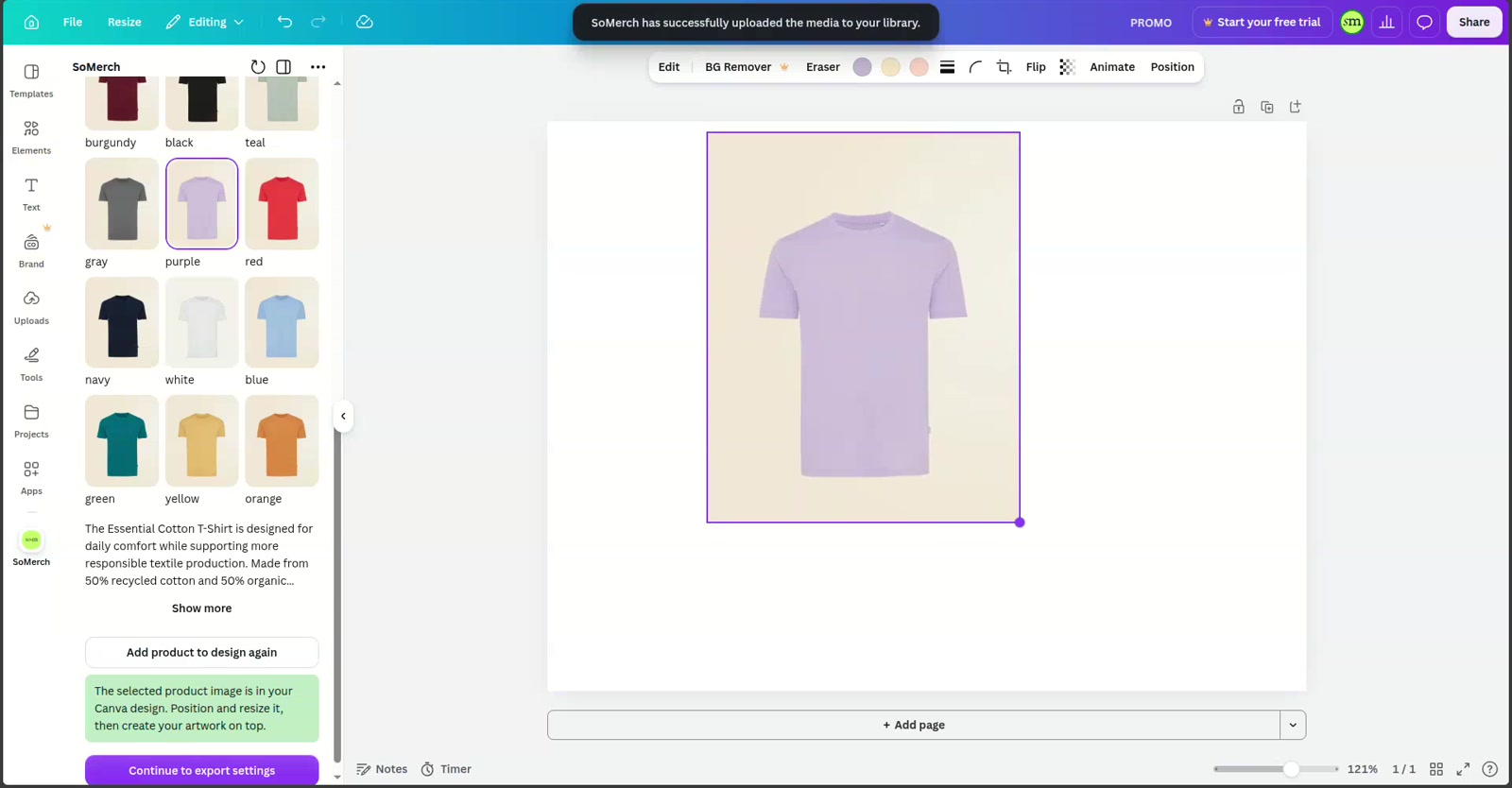
At this point, you no longer need to switch between a product page, a downloaded mockup and Canva. The product is already inside the working design.
Place your logo or artwork
This is the core of the workflow.
Use Canva normally to add the artwork you want on the merchandise.
For example:
-
Upload your logo to Canva or select an existing brand asset.
-
Place it over the product image.
-
Resize it to the approximate branding area.
-
Adjust its position until the result looks right.
-
Add text or other graphics if the design requires them.
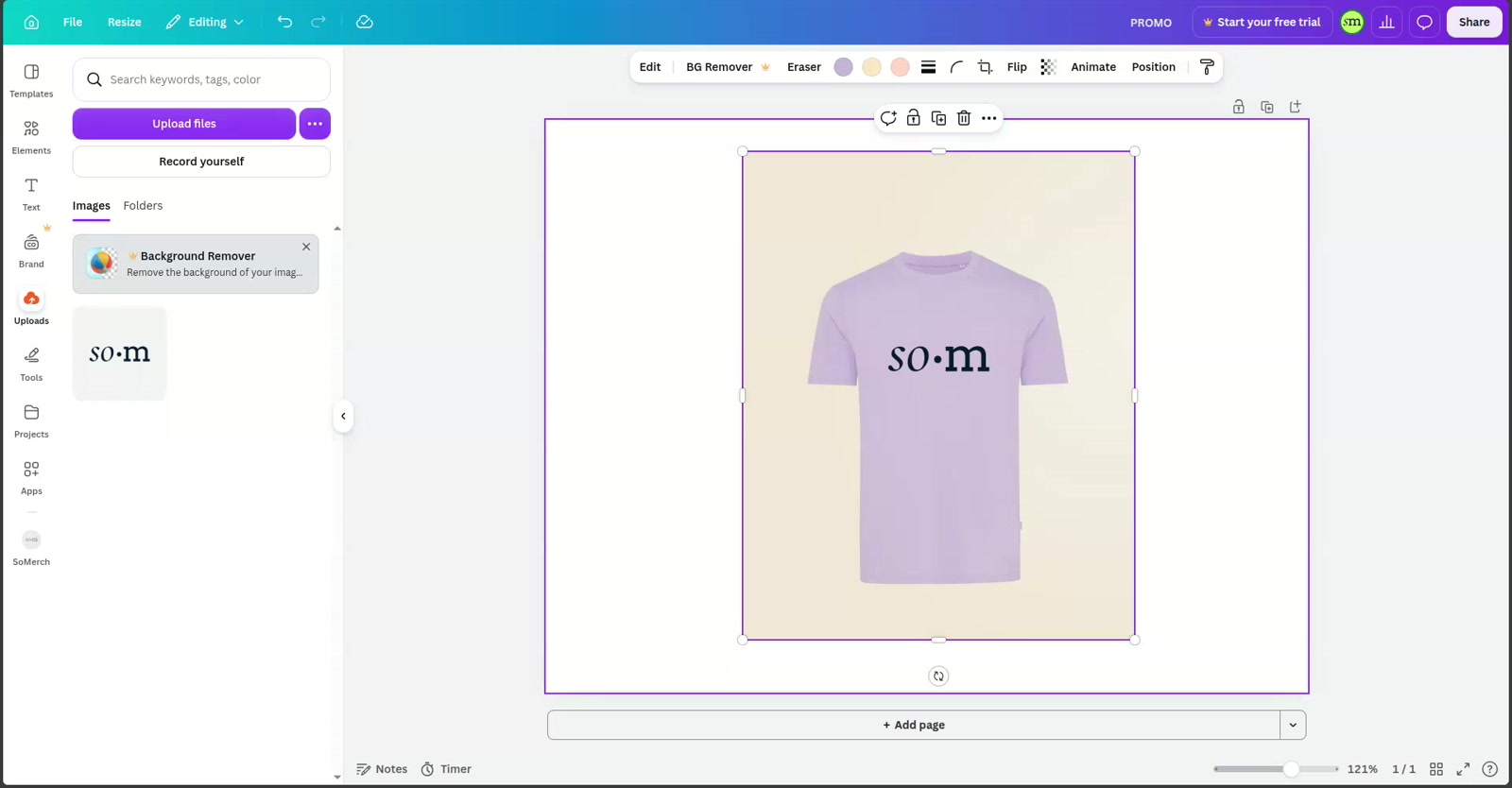
The Canva design acts as a visual placement reference for SoMerch.
You do not need to manually describe something like "center the logo 8 cm below the collar" if the design already shows the intended position clearly. If production needs additional information, you can still add it later in the request instructions.
Keep in mind that the Canva preview is a design and placement reference. Final branding feasibility, exact production dimensions, method and technical preparation are confirmed by SoMerch before production.
Configure the production request
When the design looks right, move to the production settings step.
The integration keeps the selected product visible while you configure the commercial and production details.
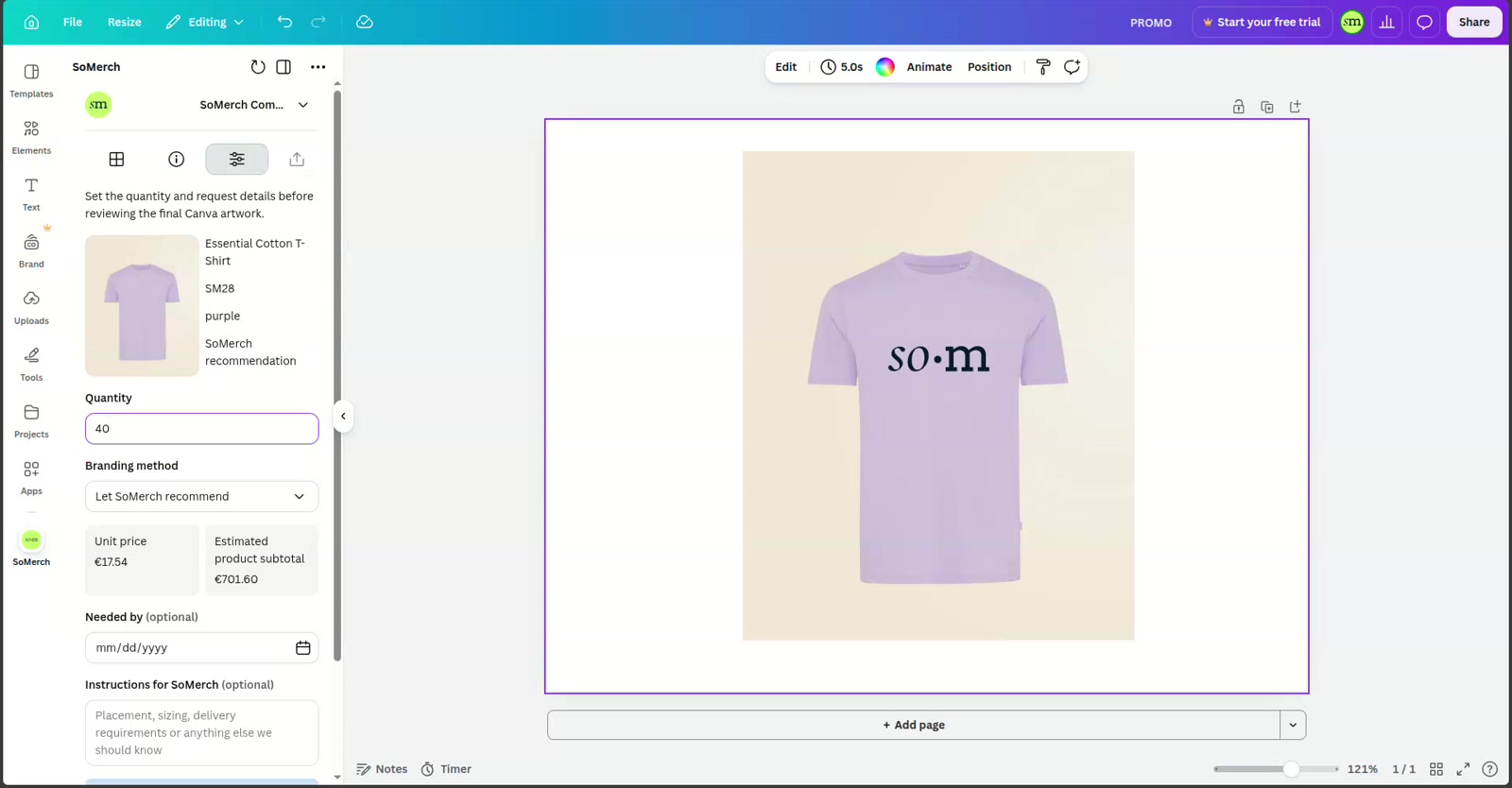
Quantity
Enter the number of units you want.
The quantity must meet the product's minimum order quantity.
The integration uses the selected quantity to show the applicable unit price and an estimated product subtotal when pricing is available.
The subtotal is an estimate for the product quantity. Branding, shipping, applicable taxes and final production details are confirmed separately by SoMerch.
Branding method
You can either:
-
leave Let SoMerch recommend selected; or
-
choose an available branding method when one is appropriate for the product and request.
Leaving SoMerch to recommend the method is useful when the important part is the visual result and you want the production team to choose the most suitable technique.
Needed by
The Needed by field is optional.
Use the calendar to select a requested date when the merchandise is tied to an event, onboarding date, campaign or another deadline.
The date is a request, not a guaranteed delivery commitment. SoMerch confirms feasibility after reviewing the request.
Instructions for SoMerch
Use the instructions field for production information that is not obvious from the visual design.
Examples include:
-
preferred logo size;
-
special placement notes;
-
delivery requirements;
-
event timing;
-
packaging notes; or
-
another production constraint that SoMerch should know.
Review and send to SoMerch
Before sending, the review step brings the important information together in one place.
You can check:
-
selected product;
-
selected color;
-
quantity;
-
unit price and estimated product subtotal;
-
branding method;
-
requested needed-by date;
-
instructions; and
-
the finished Canva artwork on the page.
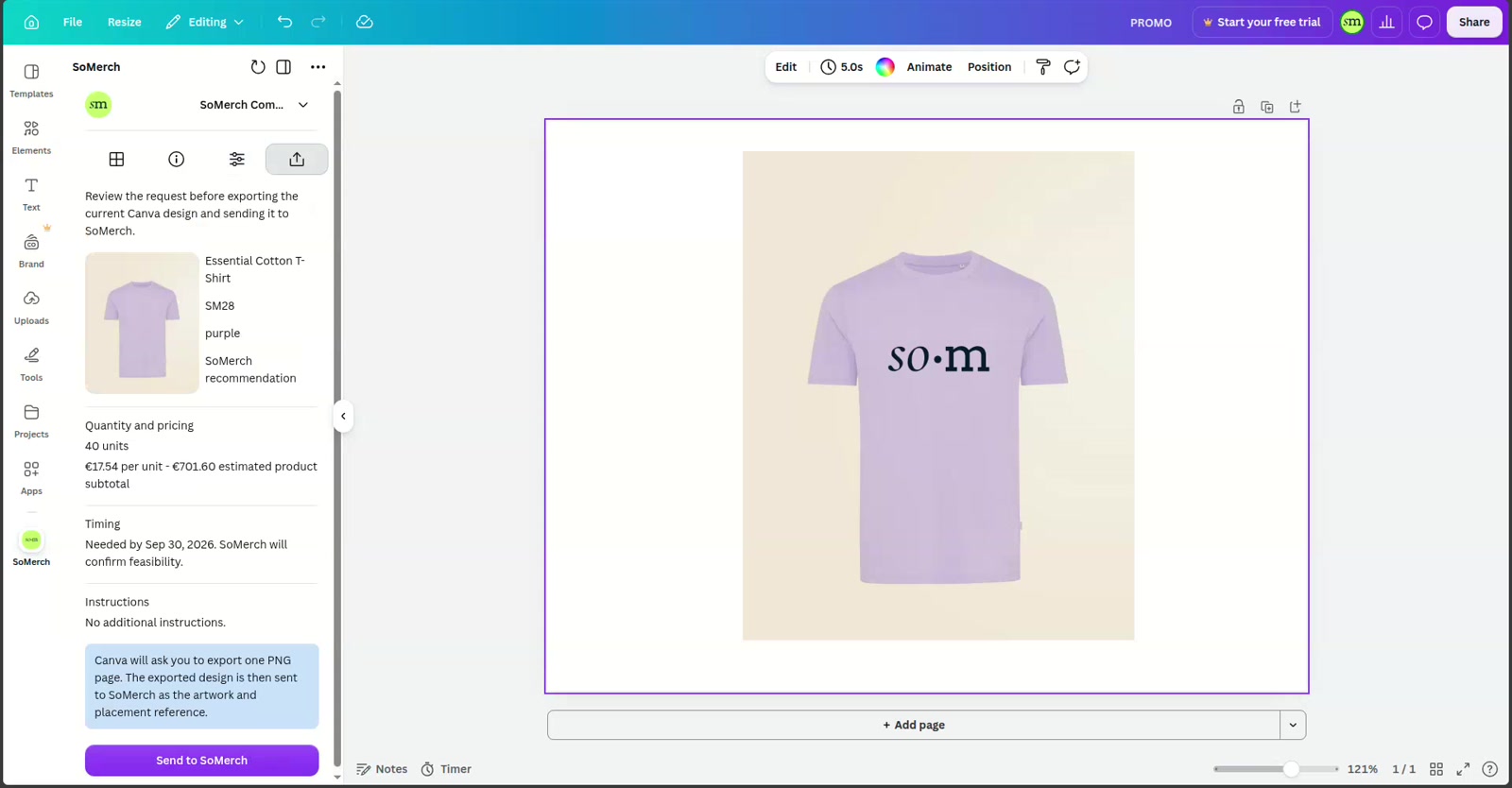
When everything looks correct, click:
Send to SoMerch
Canva opens the export flow for the current page.
The integration uses a PNG export for the artwork. Select the page that contains the final merch design and complete the Canva export.
After Canva prepares the PNG, the integration sends the artwork and request details to SoMerch.
The request includes the selected product and color together with the configured quantity, branding preference, deadline and instructions where provided.
What happens after sending
When SoMerch successfully creates the request, the Canva app shows a confirmation state.
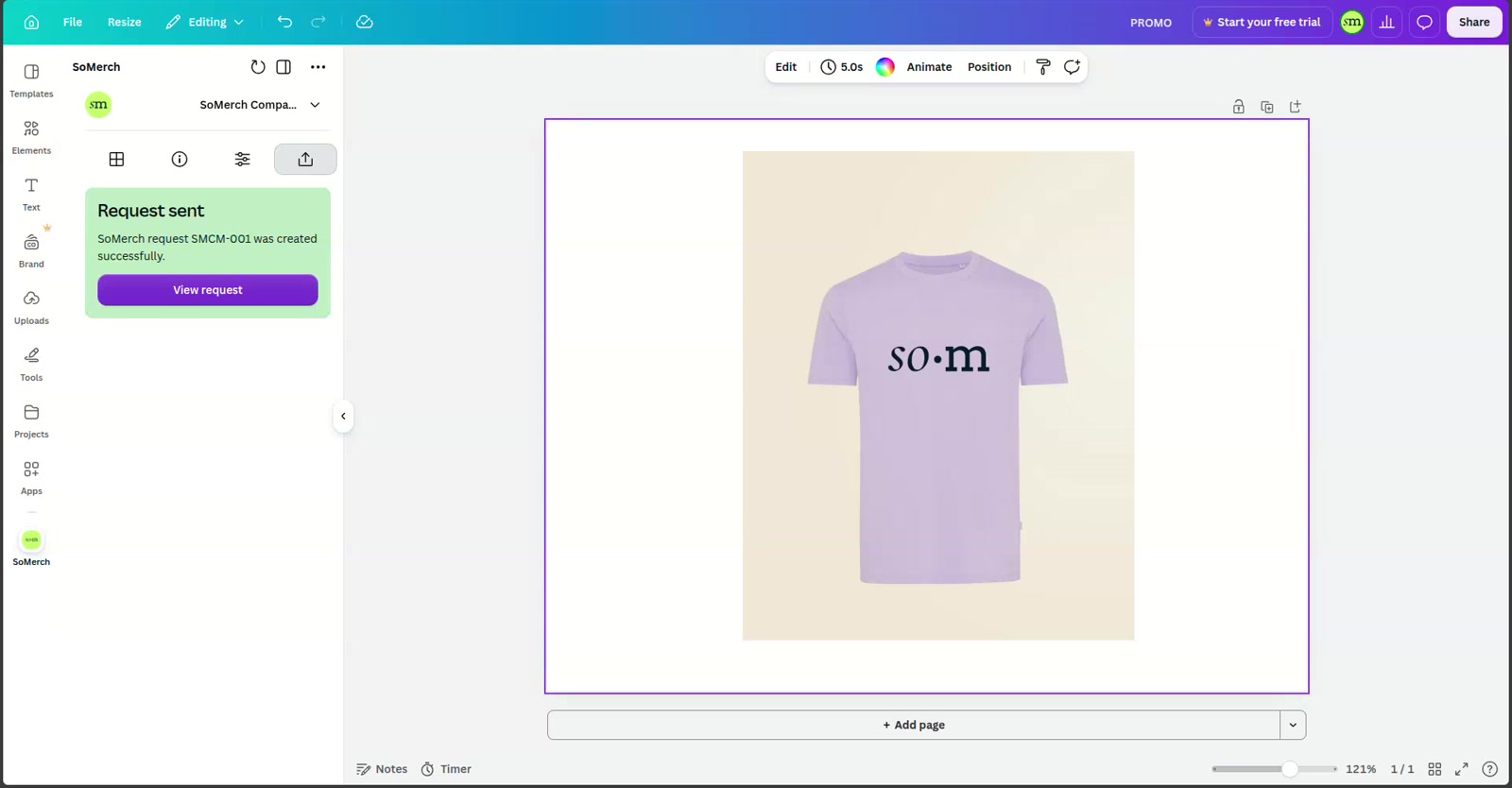
Click View request to open the created request in SoMerch.
The request contains the selected product, quantity and artwork reference and becomes available for SoMerch review.
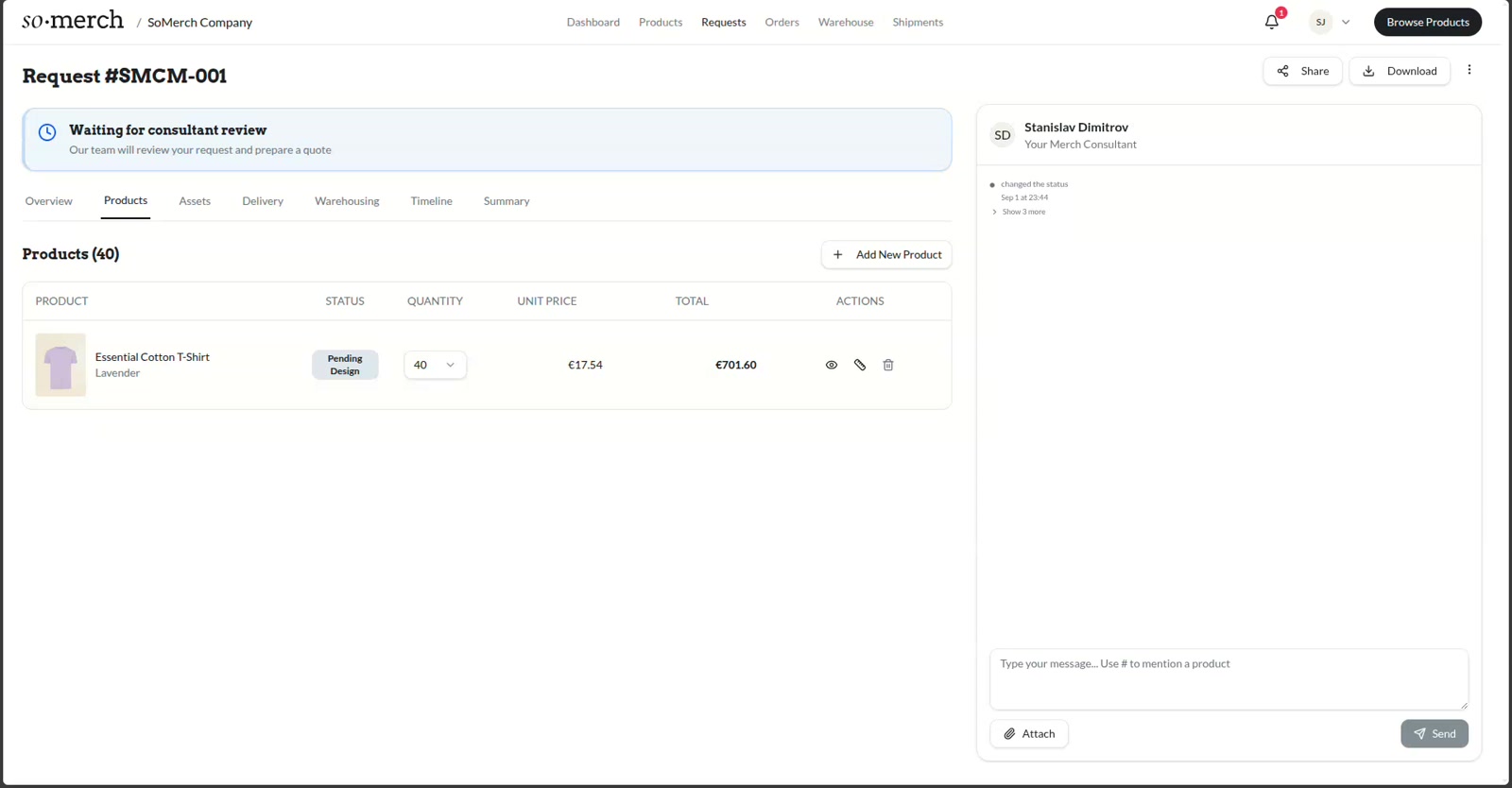
A newly submitted request may show a status such as Waiting for consultant review.
The SoMerch team can then review the artwork, production method, quantities and other requirements and prepare the next commercial or production step.
Sending the Canva design creates a request. It does not by itself guarantee production, delivery timing or a final commercial price.
A simple example
Imagine your company needs 40 branded T-shirts for a team event.
Without the integration, the process might look like:
Find product -> Download mockup -> Open Canva -> Design -> Export -> Find product link again -> Email artwork -> Explain quantity/color -> Wait for confirmation
With the SoMerch Canva integration:
Choose T-shirt -> Choose purple -> Add to Canva -> Place logo -> Set 40 units -> Review -> Send to SoMerch
The important information stays connected to the product and the artwork throughout the workflow.
Data, permissions and security
Data loaded from SoMerch
The Canva integration may load information needed to browse and configure the merchandise request, including:
-
product names;
-
product images;
-
product URLs;
-
SKU information;
-
available colors;
-
minimum order quantity;
-
price information;
-
production lead time; and
-
available branding methods.
The integration is not designed to copy unrelated SoMerch organization data into Canva.
Data sent to SoMerch
When you send the request, SoMerch may receive:
-
selected product;
-
selected color;
-
requested quantity;
-
selected branding method where applicable;
-
requested needed-by date;
-
production instructions;
-
the exported Canva PNG; and
-
technical information needed to create and protect the request from duplicate submission.
The exported Canva page is used as the artwork and placement reference for the request.
Authentication
The SoMerch account connection uses OAuth authorization.
Do not place the following in Canva text fields, production notes or support messages:
-
passwords;
-
access tokens;
-
refresh tokens;
-
API keys;
-
authorization codes; or
-
other authentication secrets.
Use the normal SoMerch connection and logout controls instead.
For full information about data handling, integrations and deletion requests, see the SoMerch Privacy Policy.
When reporting a technical issue, include:
-
approximate date and time;
-
Canva design type;
-
selected product;
-
selected color;
-
the step where the problem occurred;
-
the exact error or warning shown;
-
whether the product image was already added to the Canva page; and
-
the SoMerch request reference if a request was created.
Do not send passwords, API keys, authorization codes, access tokens, refresh tokens or other authentication secrets in a support message.
Disconnecting or uninstalling SoMerch
You can stop using the SoMerch integration by disconnecting the current SoMerch organization or by removing the app through the controls available in Canva.
To disconnect the current SoMerch organization:
-
Open the organization dropdown in the SoMerch app header.
-
Choose Log out.
-
The integration returns to the initial SoMerch sign-in screen.
Logging out disconnects the SoMerch integration from the current Canva session. It does not log you out of your Canva account.
Disconnecting or removing the integration does not automatically cancel:
-
a SoMerch request already created;
-
an existing merchandise order;
-
a production job;
-
an active shipment; or
-
another commercial agreement already created in SoMerch.
Existing operational and commercial records continue to follow their normal SoMerch lifecycle unless they are separately changed or cancelled.
Support
For help with the SoMerch integration for Canva, contact:
SoMerch Support
Useful links: